Virtual Piano Chords: Play Them Online
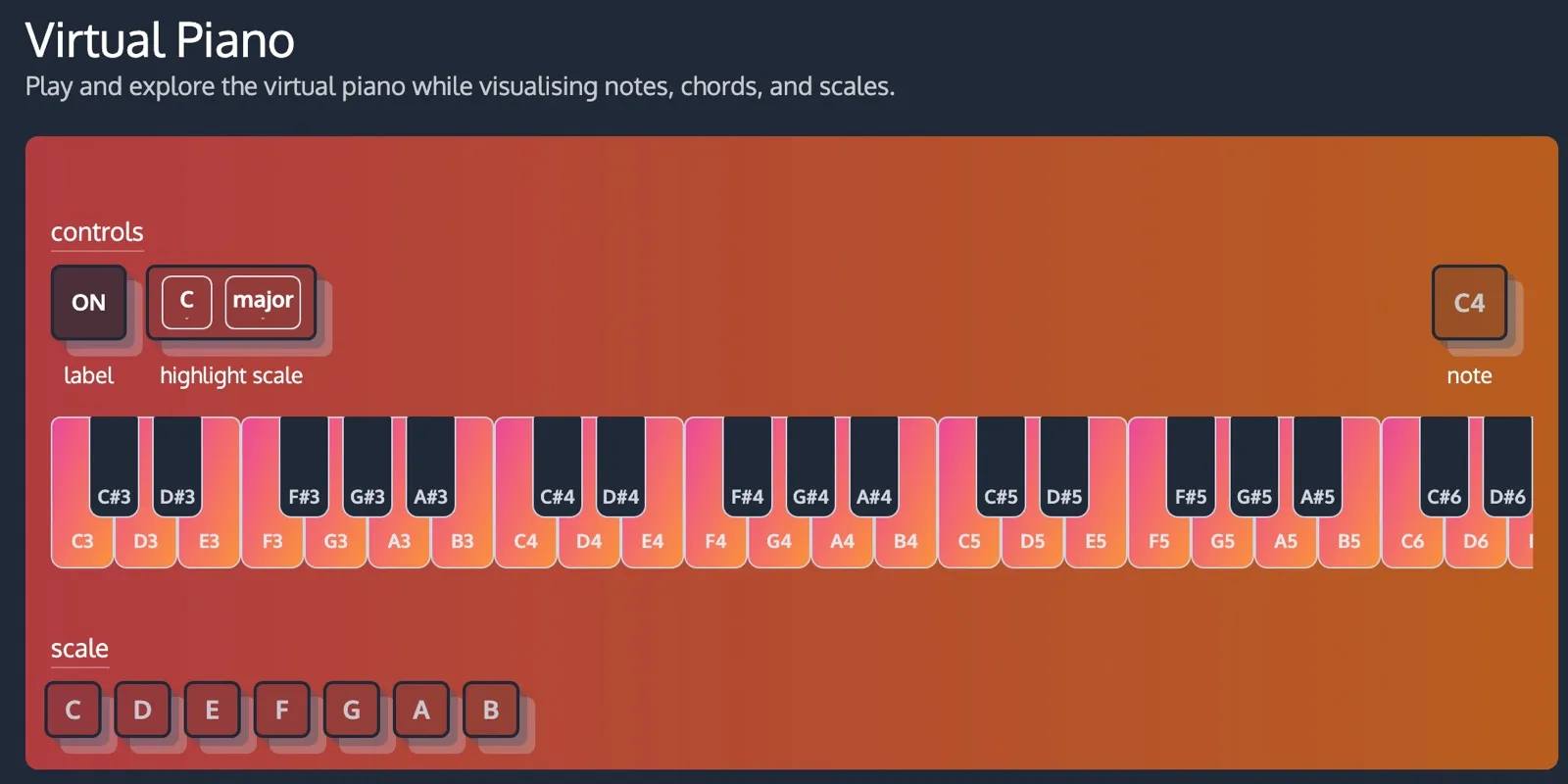
You play a chord on a virtual piano by pressing the keys that make it up at the same time, and a good online keyboard shows you which keys those are before you press anything. ChordCreate’s virtual piano labels every key, highlights any scale you pick, and plays a sampled grand piano. That is enough to find a chord, hear it, and see why it fits the key you are writing in.
The awkward part is that “virtual piano chords” covers three different jobs, and most online pianos only do one of them properly. Sorting out which one you actually need takes about thirty seconds and saves a lot of clicking.
Three jobs hiding behind “virtual piano chords”
| What you are trying to do | What you need | Where it lives on ChordCreate |
|---|---|---|
| Press keys and hear real piano notes | A playable keyboard | The virtual piano |
| Find the exact notes in a chord you can name | A chord reference | The chord pages |
| Work out which chords belong together | A scale visualiser | The highlight scale control on the virtual piano |
Most people arriving at an online piano looking for chords want the second one. You have a chord name from a chart, a tutorial or a generated progression, and you want to know which keys it is and what it sounds like. A bare keyboard will not tell you that, no matter how good it sounds.
How to play a chord on the virtual piano
The keyboard runs four octaves, C3 up to C6, and it scrolls sideways on narrow screens. Three things are worth knowing before you start.
- Click and hold a key. The note sustains while the mouse is down and stops when you release or drag off the key. A quick click gives you a short stab, holding gives you the full sample.
- Leave the label toggle on. The
ONbutton on the left writes the note name on every key, which is the difference between hunting for A#4 and just reading it. Switch it off once you no longer need the training wheels. - Watch the note readout. The box on the right shows the last note you played, so you can confirm you hit E4 and not F4.
One honest limitation: with a mouse you can only hold one key at a time, so a three note chord comes out as three separate notes rather than a block. On a phone or tablet you can press three keys at once and hear the real thing. If you are on a laptop and you want the whole chord in one hit, the chord pages below do that for you.
Looking up a chord’s exact notes
Every chord ChordCreate knows about has its own page with the notes spelled out, an interactive piano showing the shape, and a play button that sounds all the notes together. D minor is a good example.
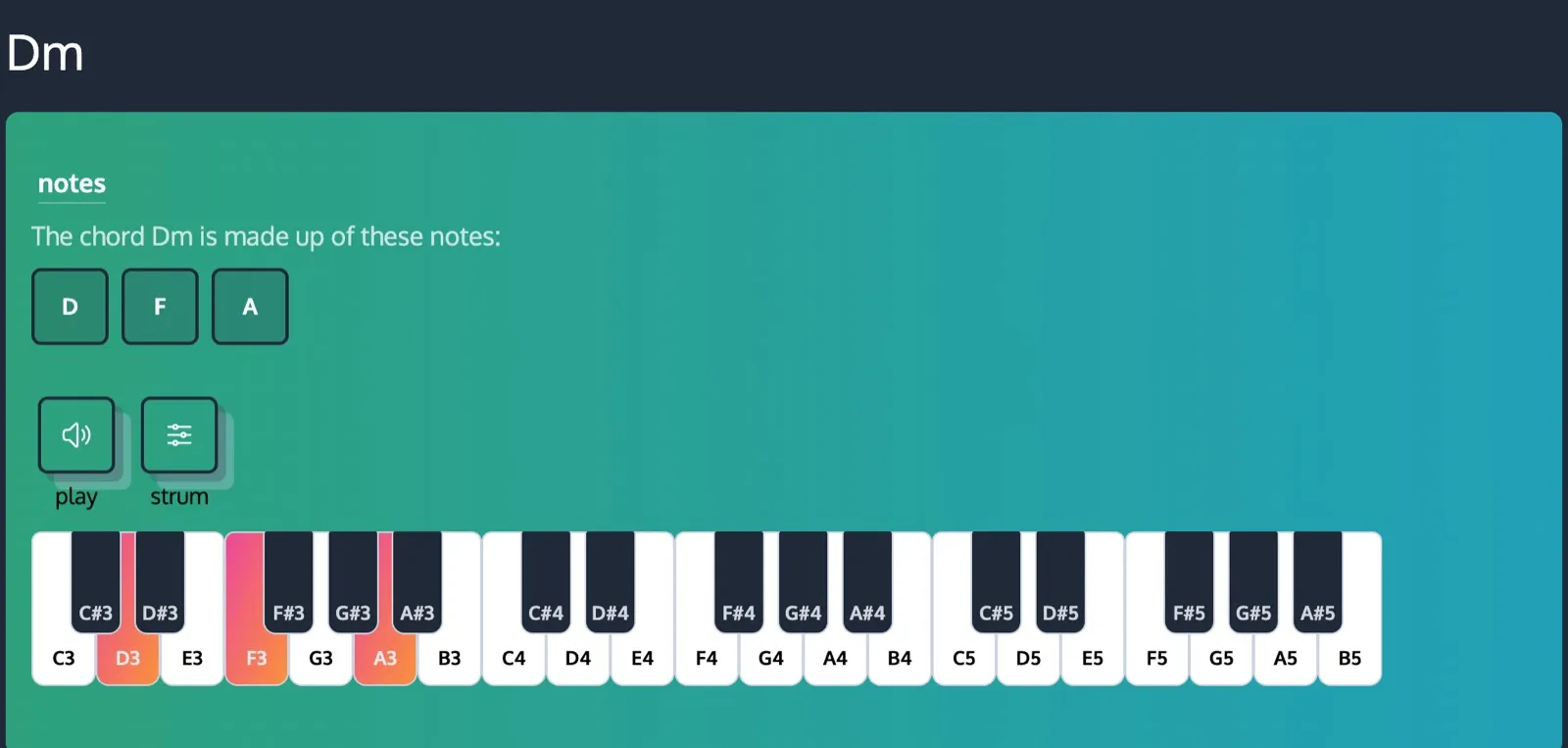
Three details on that page do the work the virtual piano cannot:
- The notes are listed as text. D, F, A. You can read them off and find them on any keyboard, physical or virtual.
- Play sounds the chord as a block, strum rolls it. The strum button spreads the notes out the way a guitarist would, which is often how a chord actually sits in a mix.
- Inversions are underneath. Same three notes, different order, which is how you stop a progression from lurching around the keyboard.
Highlight a scale to see which chords fit
This is the part most online pianos skip, and it is the one that turns a keyboard into a writing tool. Pick a root note and a scale type from the two dropdowns under “highlight scale” and every key in that scale lights up, with the notes spelled out underneath the keyboard.
Choose C and major, as in the image at the top of this post, and every white key lights up while every black key stays dark. That is the whole point of C major in one glance: it is the seven white keys, no accidentals.
Once you can see the seven notes, the chords in that key are just those notes stacked in thirds: start on a note, skip the next one, take the one after, skip again, take the one after that. Do it from every note in the scale and you get the seven chords below, each linked to its own page so you can hear it:
| Chord | Notes | Numeral | How it tends to feel |
|---|---|---|---|
| C | C, E, G | I | Home, settled |
| Dm | D, F, A | ii | Gentle, leaning forward |
| Em | E, G, B | iii | Wistful, in between |
| F | F, A, C | IV | Open, lifting |
| G | G, B, D | V | Tense, wants to resolve |
| Am | A, C, E | vi | The sad one |
| Bdim | B, D, F | vii° | Unstable, rarely used plain |
The dropdown carries eight scale types, though two of them are duplicates under formal names: ionian is major and aeolian is natural minor, so the genuinely different options beyond those two are dorian, lydian, mixolydian and locrian. Switching the root to D and the type to dorian lights up exactly the same seven white keys as C major, which is a neat way to see that a mode is the same set of notes heard from a different starting point.
Worth flagging so you are not caught out: the highlight currently works cleanly for scales built only from natural notes. Pick a scale containing a sharp or flat and that one key stays dark on the keyboard, though it still appears in the list of scale notes underneath.
From single chords to a progression
A chord progression is a sequence of chords played in a fixed order, and it is what makes a piece of music move rather than sit still. Chords on their own are vocabulary; a progression is the sentence. Here are two built entirely from the C major table above, both playable online right here:
That is I, V, vi, IV, the progression underneath a genuinely enormous number of pop songs. Start on the same four chords in a different order and the mood flips:
Same notes, same key, completely different feeling, because it starts on the minor chord instead of the major one. If that is the direction you want, we grouped twelve sad progressions by mood with the same play-as-you-read approach.
When you would rather start from a feeling than from a key, ChordCreate’s generator takes a plain description like “dreamy lofi with a bittersweet turn” and writes the progression for you, which you can then pull apart on the virtual piano. We walked through that in generating a chord progression from a text prompt, and if you want to look chords up by name rather than by ear, the chord finder guide covers that route.
Quick answers
Can I play chords on a virtual piano with my computer keyboard? Not on ChordCreate’s virtual piano, which is click and tap only. On a touchscreen you can press several keys at once to sound a full chord.
How do I know which chords are in a key? Highlight that key’s scale on the virtual piano, then build a three note stack on each scale degree, skipping every other note. The C major table above is that process worked through.
What is the difference between a virtual piano and a chord player? A virtual piano gives you every key and lets you play freely. A chord player sounds a named chord in one click but will not let you play anything else. ChordCreate splits the two: the virtual piano for playing, the chord pages for looking chords up.
Do I need to read music to use this? No. Every key is labelled with its note name and every chord page lists its notes as letters, so you can work entirely from letter names.
Is it free? Yes, the virtual piano and all the chord pages are free and need no account.